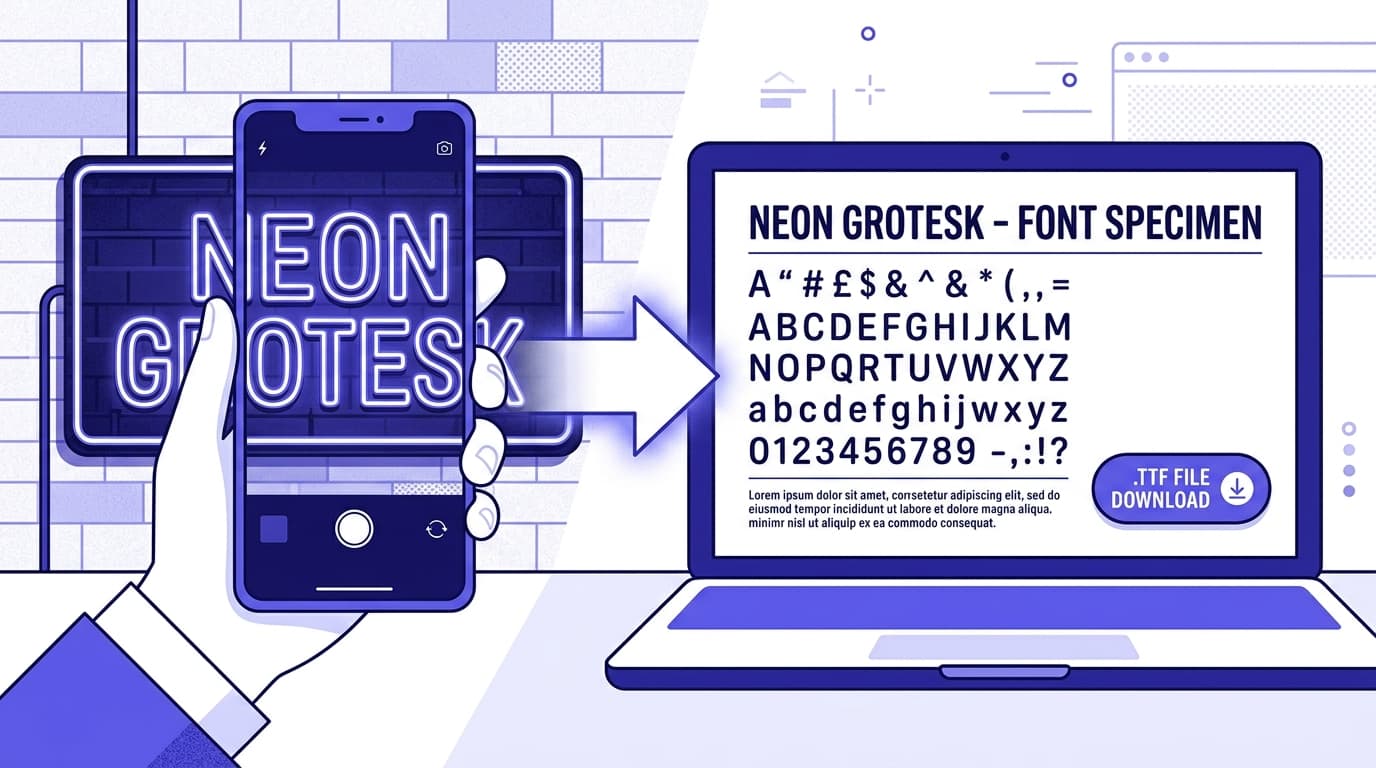
You have a screenshot, a product label, a scanned poster, or a brand graphic with type you need to identify. The obvious next step is to upload the image to a font identification tool and wait for a perfect match. Sometimes that works. More often, the result is a long list of “close” fonts that look convincing at first glance but fall apart when you compare the lowercase a, the capital R, or the spacing.
That gap between expectation and reality is why a useful font identifier comparison needs more than a list of popular websites. Different services solve different problems: some search commercial font libraries, some recognize fonts from a carefully cropped image, and some help when the lettering is too custom, damaged, or stylized for any database search to succeed.
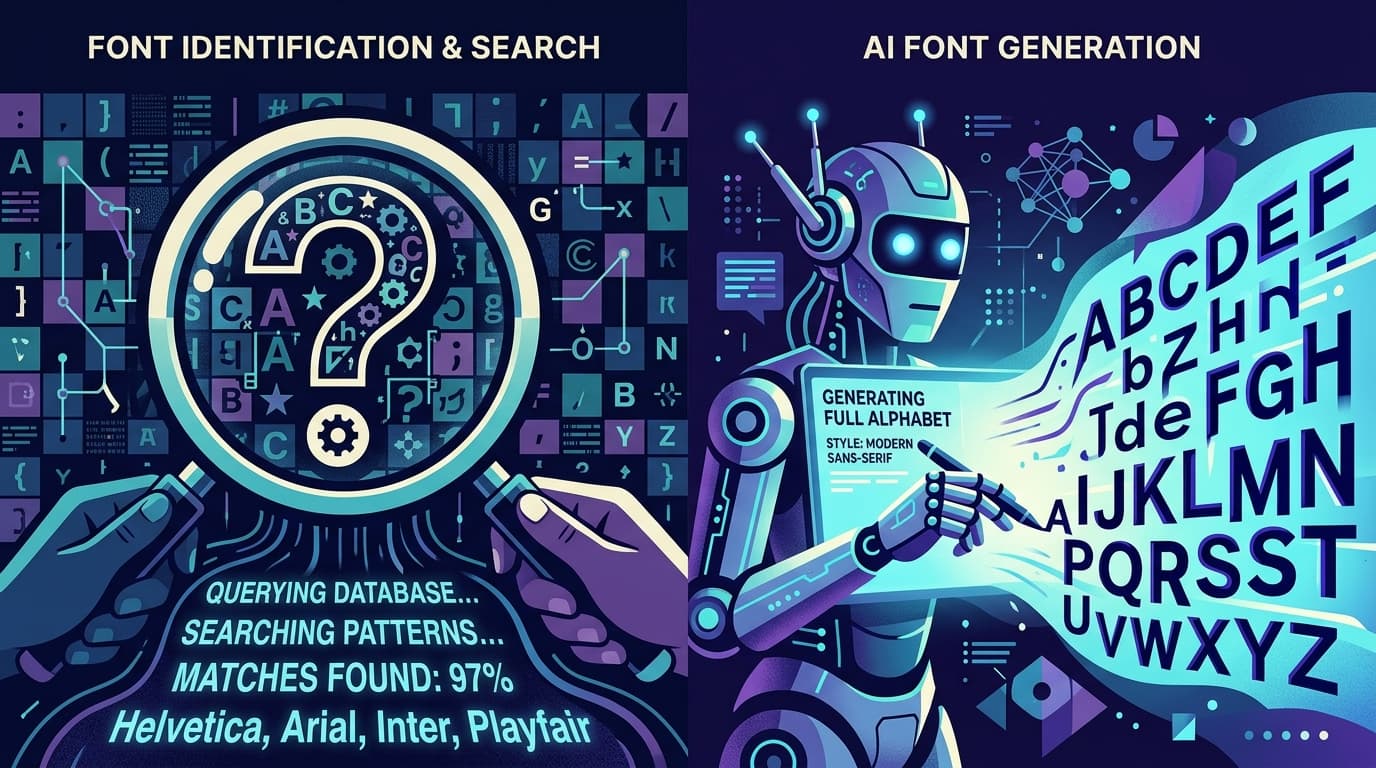
In this guide, we put the most common approaches head-to-head: MyFonts WhatTheFont, Fontspring Matcherator, Adobe Fonts’ visual search workflow, and AI font generation. You will learn which font recognition tool is most useful for clean samples, which one handles imperfect scans best, why an identify font online search can fail even when the letters are clear, and what to do next when no font finder returns the answer you need.
How We Tested Font Identification Tools
A fair test needs more than uploading one crisp image set in Helvetica. Real-world font detection starts with imperfect source material, so we evaluated each tool against the conditions designers, marketers, and researchers actually encounter. The goal was not simply to see whether a service could name a famous font, but whether it produced usable, explainable results under realistic constraints.
We considered four types of samples: clean digital text on a plain background; photographed signage with perspective distortion and uneven lighting; vintage print with texture, fading, and ink spread; and heavily customized lettering with outlines, shadows, warped baselines, or modified characters. We also tested serif, sans serif, script, display, and condensed type styles. For each submission, we looked at three things: match quality, ease of preparing the image, and whether the suggested results gave enough information to make a practical licensing or design decision.
Match quality matters, but it is not the only measure. A useful font scanner should either find the actual typeface or return visually close alternatives with clear preview tools. Ease of preparation is equally important: if a service requires a perfectly isolated word with every character manually boxed, it may be powerful but slower than its marketing suggests. Finally, we assessed source limitations. A tool that only searches one catalog may miss the exact font even if it recognizes the letterforms correctly.
One testing principle is worth emphasizing: no software can identify a font that does not exist as a published font file. Hand lettering, altered logos, bespoke characters, and text converted into shapes may resemble a typeface without corresponding to one. In those cases, the best font finder is not necessarily the one that names a font; it is the one that helps you move forward with an appropriate substitute or a new usable font asset.

Tool 1: WhatTheFont by MyFonts
Best for fast searches from clean, readable images
WhatTheFont is often the first answer people find when searching “identify font online,” and for good reason. Its upload flow is straightforward: add an image, let the system detect text, select the letters it should analyze, and review suggested matches from the MyFonts ecosystem. It is fast, approachable, and especially effective when the sample contains high-contrast, horizontally aligned text.
Its biggest strength is convenience. For a clean screenshot of a headline or a photo of a simple sign, it can recognize character shapes quickly and surface plausible matches without requiring deep typography knowledge. The results page also makes visual comparison relatively easy, which is helpful when the exact font is unavailable but a near match is acceptable. If you need a font for a one-off social image or a quick design mockup, that speed is valuable.
The tradeoff is catalog coverage. WhatTheFont searches a large commercial marketplace, but it cannot return fonts outside the library it indexes. This creates a common false negative: the recognition engine may understand that a sample resembles a particular family, yet the exact typeface will not appear if it is a system font, an obscure foundry release, a custom font, or a font from another distributor. In addition, decorative effects can confuse the upload. A drop shadow, outline, low-resolution JPEG artifacts, or connected script letters may cause the detected character boundaries to be wrong.
To get better results, crop tightly around one line of text, use at least six to ten characters when possible, and remove as much background clutter as you can. Choose letters with identifying features: a lowercase g, lowercase a, capital Q, ampersand, or numerals often distinguish families better than a word made entirely of simple vertical strokes. WhatTheFont is a strong first-pass font identification tool, but treat its suggestions as evidence to verify, not an automatic final answer.
Tool 2: Fontspring Matcherator
Best for hands-on control and difficult character separation
Fontspring Matcherator takes a more deliberate approach to font matching. Instead of relying entirely on automatic text detection, it gives users more opportunity to guide the process by identifying and adjusting individual characters. That extra effort can be worthwhile for images where automated segmentation fails, such as a scanned book cover, a distressed T-shirt graphic, or lettering that sits over a complex image.
In testing, Matcherator’s value was most apparent when the source image was usable but messy. If a tool incorrectly reads an uppercase I as a lowercase l, or joins two letters together, the resulting suggestions can be wildly off. Being able to correct the characters tells the font recognition tool what it should be comparing. This makes Matcherator a practical choice for users who are willing to spend a few minutes preparing a search rather than accepting the first automated result.
Its limitations are similar to those of other catalog-based tools: it can only match against fonts available to its search system. It is also not magic against severe distortion. A word photographed at a sharp angle, printed with extreme texture, or transformed with a wave effect may need image cleanup before any font scanner can analyze it reliably. For script type, the problem is even harder because the connection between letters and the unique shapes of alternate glyphs can conceal the underlying font.
Use Matcherator when you have a decent sample but want more control than a one-click upload offers. Before submitting, straighten the baseline, boost contrast, and isolate a single word or line. If the text is white on a photograph, try creating a black-and-white version first. Then compare the returned fonts at the same size as the original sample. Do not judge only by the overall “feel”; inspect distinctive terminals, crossbars, counters, and proportions. Those details separate a genuine match from a merely similar typeface.
Tool 3: Adobe Fonts Visual Search
Best for finding a licensable, workflow-ready alternative
Adobe Fonts is not always a direct answer to “what font is this?” in the same way a dedicated font identifier is. Its practical advantage is different: it helps Adobe Creative Cloud users search a curated library and activate fonts that fit their design workflow. Depending on the Adobe application and current feature set available to you, visual search and font matching options can help turn an image reference into candidate fonts you can test immediately in a layout.
That workflow is especially useful when an exact historical identification is less important than recreating a visual direction quickly. For example, a marketing team may need a modern geometric sans that feels like a reference image, not necessarily the original proprietary face. Searching, activating, and testing comparable fonts inside Photoshop, Illustrator, or InDesign reduces the friction between research and production.
However, Adobe Fonts should not be treated as an all-knowing font detection tool. Its results are constrained by its library, and visual similarity does not guarantee a match. It may also be less suitable for users who are not already working in the Adobe ecosystem or who simply need to identify an old type specimen for archival purposes. For those cases, a marketplace search or manual typographic research may be more direct.
The best use case is replacement rather than forensic identification. Bring in the clearest possible reference, search broadly by classification and features, then test candidates in context. A typeface that appears slightly wrong in a search result may look perfect once you match the original’s weight, tracking, line height, and color. Conversely, a candidate that looks nearly identical in one word may fail across a full headline because its width and rhythm differ.
Tool 4: AI Font Generation
Best when there is no identifiable font to find
AI font generation addresses the problem that traditional font search cannot: what if the lettering in your image is custom? A logo may use hand-drawn characters, a vintage sign may contain modified forms, or a scanned alphabet may belong to an unpublished typeface. In these cases, repeatedly trying another font identification tool will not create an exact answer because there is no catalog entry to discover.
The useful question changes from “Which existing font is this?” to “How can I turn this visual style into a typeable font?” That is where image-to-font tools are valuable. Rather than returning a list of lookalikes, they help transform a reference style into a font file you can use in design software. Snapafont is built for this workflow: you provide an image reference and generate a downloadable .TTF font, allowing a distinctive visual direction to become something you can type with rather than merely imitate by hand.
This approach is not a substitute for respecting intellectual property. Do not use it to copy a protected brand identity, reproduce a commercial font you have not licensed, or imply ownership of someone else’s lettering. It is best suited to your own sketches, properly licensed source material, public-domain references, and projects where you need an original typeable interpretation of a visual style.
AI generation also has practical limits. A single image may not reveal every character, punctuation mark, number, or weight. The output should be tested using real words, not only an alphabet preview. Check common pairs such as AV, To, Wa, and Yo, then inspect whether punctuation and numerals suit your intended use. For display text, a style can be expressive even with minor irregularities. For body text or brand systems, you will need greater consistency, spacing control, and thorough quality assurance.
Results: Which Font Finder Actually Works?
The short answer is that there is no single best font finder for every image. WhatTheFont is usually the fastest first step for clean text and a broad commercial-font search. Fontspring Matcherator is often more useful when character detection needs human correction. Adobe Fonts is strongest when your real goal is to find and activate a close, production-ready alternative. AI generation is the best path when the reference is custom lettering or when an exact searchable font simply does not exist.
For clean digital samples, start with WhatTheFont. For worn print, uneven backgrounds, or difficult letter segmentation, try Matcherator after cleaning the image. For an Adobe-based design workflow, use Adobe Fonts to find a practical substitute and evaluate it in the actual composition. If all search tools return vaguely similar results but none matches distinctive glyphs, stop treating it as a search failure. That pattern often means you are looking at custom art, modified type, or a font outside the available databases.
A reliable identification process is iterative. First, isolate the text. Second, identify high-value glyphs: letters that reveal construction, such as the shape of the lowercase e, the tail of the Q, or the leg of the R. Third, run at least two tools, because different databases and detection systems produce different candidate sets. Fourth, compare candidates side by side at the original size. Finally, decide whether you need an exact licensed font, a close replacement, or a new font inspired by the source.
The most important takeaway is that font recognition is pattern matching, not certainty. Even expert typographers use references, specimen sheets, and side-by-side testing. A good font identifier comparison should therefore measure whether a tool helps you make the next correct decision—not whether it promises an impossible one-click answer.
When Font Identification Stops, Create a Usable Font
If you have exhausted every font recognition tool and the results still miss the mark, the source may be custom, altered, or simply unavailable in searchable libraries. You do not have to abandon the style or redraw every headline manually. For your own artwork, licensed references, or public-domain inspiration, Snapafont can help turn an image into a downloadable .TTF font file that you can test in your normal design workflow.
Start with the clearest reference you have, choose a style that supports your intended use, and proof the result with real words before committing it to a project. Visit snapafont.com to explore the image-to-font workflow and move from “I can’t identify this font” to “I can actually use this style.”
Ready to turn your image into a font?
Upload any image and get a real, downloadable .TTF font file in seconds.
Try Snapafont Free →