You land on a website and immediately notice the type. Maybe it is a polished serif on a magazine site, a friendly handwritten heading in an online shop, or a clean sans serif that makes a product page feel unusually premium. Your first question is usually simple: what font is this website using?
The good news is that you can usually find font on website pages in about 10 seconds. Modern browsers can reveal the exact font family, font weight, size, line height, letter spacing, and even the font file being loaded. You do not need to be a developer, and you do not need to guess based on letter shapes alone.
This guide explains several reliable ways to identify website font choices: browser developer tools, browser font finder extensions, page-source searches, and custom-font file checks. It also covers the situations where a website is using a proprietary typeface, a variable font, an image instead of live text, or a font that has been modified beyond easy recognition. By the end, you will know how to find website font information quickly and what to do with the result.
Method 1: Use Browser Developer Tools
Developer tools are the most accurate built-in way to inspect font website styles. Chrome, Edge, Firefox, Safari, and most Chromium-based browsers include them for free. Although the names and panel locations vary slightly, the basic workflow is the same: select the text, open its computed styles, and read the rendered font details.
Start by opening the page and locating a piece of selectable text that uses the font you want to identify. Right-click that text and choose Inspect or Inspect Element. This opens developer tools, typically docked on the right or bottom of the browser window. The HTML element associated with the text should be highlighted automatically.
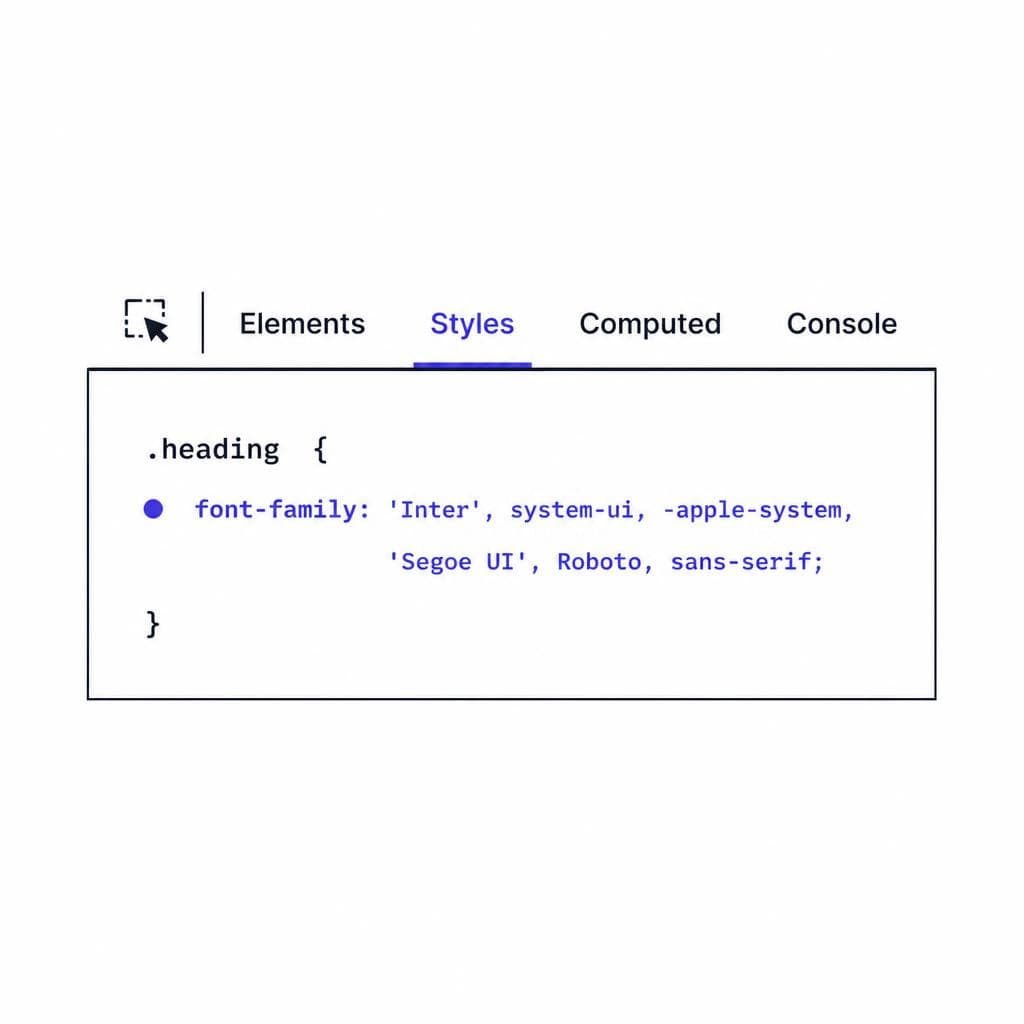
In Chrome and Edge, look in the Styles panel for the CSS property called font-family. You may see a stack such as "Inter", Arial, sans-serif. The first available font is normally the designer's preferred choice, while later names are fallbacks used if the primary font fails to load. For a more dependable answer, switch to the Computed tab, search for “font,” and expand the Rendered Fonts section. That area shows the font actually used to draw the selected characters, not merely the list of requested fallbacks.
For example, a heading may declare font-family: "Playfair Display", Georgia, serif. If Playfair Display loads successfully, the rendered-font readout will confirm it. If it fails to load or does not contain a particular character, the browser may instead render Georgia or another fallback. This distinction matters when you are trying to identify website font choices precisely.
Developer tools also reveal the typography settings that make a font look the way it does. Check font-size, font-weight, font-style, line-height, letter-spacing, and text-transform. A typeface can look radically different at 18px versus 64px, or at weight 400 versus 700. If you want to recreate a visual style, record these settings instead of only copying the family name.
Firefox offers a particularly friendly Font panel. After inspecting text, open the Fonts tab in the right sidebar to see the fonts applied to the selected element and a preview of their variants. Safari users can enable the Develop menu in Settings, then use Inspect Element and review the Styles or Computed information.
One limitation is that selected text may contain multiple fonts. A site might use one font for Latin letters, another for Japanese characters, and a symbol font for icons. Test a few different characters and inspect the Rendered Fonts readout if the result seems inconsistent.
Method 2: Try a Browser Font Finder Extension
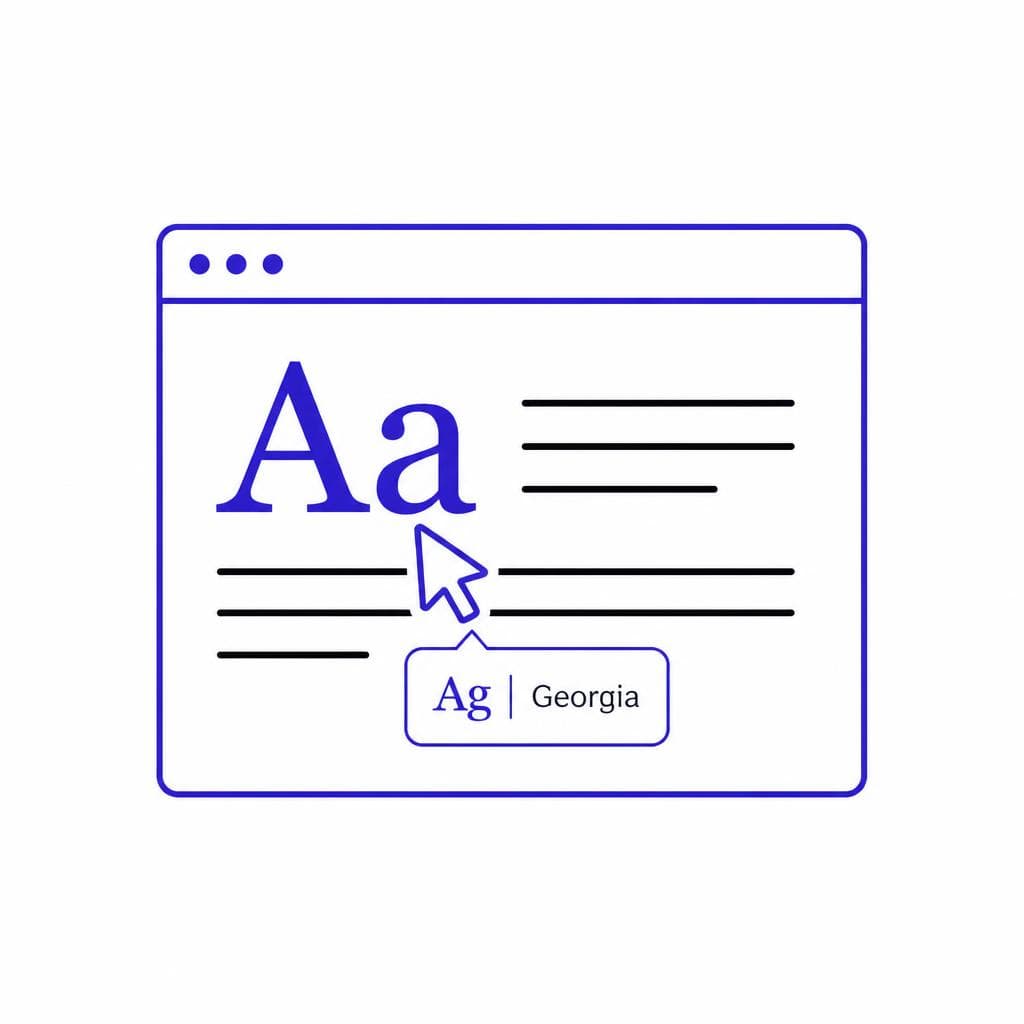
A browser font finder extension is the fastest option when you want an answer without opening developer tools. These extensions usually add a button to your toolbar. Click it, hover over text on a page, and the tool displays details such as font family, weight, size, color, line height, and sometimes the source URL.
Popular options change over time, but the best extensions share a few characteristics: they identify the rendered font rather than only reading a CSS declaration, they work on dynamically loaded pages, and they clearly distinguish a font family from a generic fallback such as serif or sans-serif. Before installing anything, review the extension's permissions. A tool that reads page content may need access to websites, but it should come from a reputable publisher and have a clear privacy policy.
Extensions are especially convenient for quick inspiration research. Suppose you are reviewing five portfolio sites and want to build a reference list. Activate the extension, hover over each hero heading, and note details such as “DM Sans, 700, 56px” or “Cormorant Garamond, 600, 68px.” In a few minutes, you can identify the visual patterns that recur across the sites: high-contrast editorial serifs, geometric sans serifs, condensed display faces, or oversized variable-font headings.
Still, treat extension results as a starting point rather than unquestionable proof. Some tools report the CSS font stack, while others report the actual font rendered by the browser. If the extension says the page uses Arial but the design clearly appears custom, verify the element in developer tools. The text may be an image, a canvas rendering, an SVG path, or a web component whose styles the extension cannot fully inspect.
A browser font finder is ideal for casual research and fast comparisons. For client work, brand audits, or development handoff, use it alongside developer tools and save the complete style information. The family name alone is rarely enough to reproduce the result accurately.

Method 3: Search the Page Source and Network Requests
If you need to go beyond the visible text, inspect the page source and font-loading files. This method is useful when the font is declared globally, loaded through a font service, or hidden behind a stylesheet generated by a website builder.
First, view the source with Ctrl+U on Windows or Linux, or Command+Option+U on many Mac browsers. Use the page search function and look for terms such as font-family, @font-face, woff, woff2, ttf, otf, fonts.googleapis.com, or typekit. A CSS rule might look like this: @font-face { font-family: "Brand Sans"; src: url("/assets/brand-sans.woff2") format("woff2"); font-weight: 400 700; }. That tells you the internal font name, file location, and sometimes the supported weight range.
Do not be discouraged if the raw page source does not contain useful results. Many websites load styles after the initial page request. In that case, open developer tools, select the Network tab, refresh the page, and filter requests by Font. You may see files ending in .woff2, .woff, .otf, or .ttf. Clicking a request can reveal its URL, response headers, and initiating stylesheet.
This approach can explain confusing results. For instance, a site may list “Helvetica Neue” in CSS but actually download a file named AcmeSans-Variable.woff2. Or it may load a font from Google Fonts under a family name such as Manrope, then use multiple weights through one variable-font file. The Network panel makes the font used on webpage assets easier to trace.
Be aware that filenames are not always meaningful. A font file called 8vIH7w4qzmVxm2BL9A.woff2 may be a subset served by a font provider, and a file called fonts.css may include dozens of families. Search within the stylesheet for the exact CSS selector or font-family rule associated with the element you inspected.
This method is excellent for technical investigation, but it does not grant permission to copy or redistribute a font. Webfont files may be licensed only for use on that particular domain. Use your findings to understand the design, locate a legitimate license, or choose a comparable alternative.
What to Do When the Site Uses a Custom Font
Sometimes the answer to “what font is this website using?” is not a familiar commercial or free typeface. The site may use a custom brand font, a commissioned modification of an existing family, or a renamed file that obscures its original source. In these cases, tools can still tell you the internal font-family name, but that name may be something generic like “WebsiteFont” or “Brand Display.”
First, check the company’s brand guidelines, press kit, design-system documentation, or careers page. Organizations often publish their type standards, particularly if they want partners and agencies to use the brand consistently. Search the organization name with phrases such as “brand guidelines,” “typography,” or “design system.” You may find the exact family, approved weights, and licensing information.
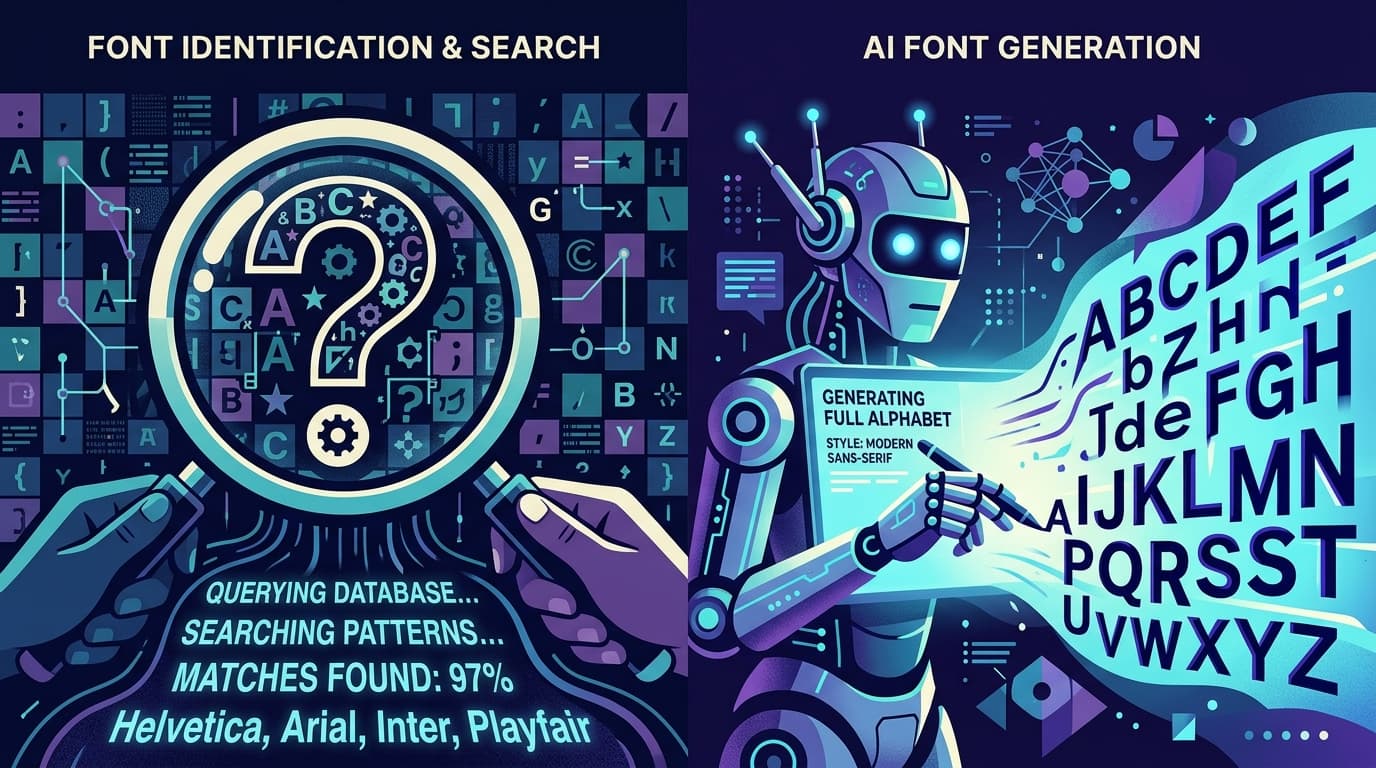
Next, examine the visible letterforms for clues. Look at the lowercase a and g, the tail of Q, the shape of R, the dots on i and j, numeral forms, and the ampersand. These details can help you find a close match through font-identification communities or visual font databases. Take a clean screenshot with several letters, ideally including uppercase and lowercase characters, rather than a tiny cropped logo.
Keep in mind that custom work is often based on an existing font. A brand may have altered terminals, adjusted spacing, added unique ligatures, or created a bespoke weight. You might identify the underlying family but still not reproduce the exact appearance. That is normal. In practical design work, a legal, visually compatible substitute is often the better choice.
Also verify whether the “text” is really text. Headline graphics, logos, and promotional banners are frequently exported as images or SVG outlines. Right-clicking may show Save Image rather than text-selection options. In that case, no inspect font website tool can retrieve a usable font file from the letters alone; you need visual analysis, brand documentation, or a replacement strategy.
When It Makes More Sense to Generate a Font Instead
Finding an existing typeface is useful when you need to match a website, research its design system, or license the real font. But there are times when identification is not the goal. Perhaps the lettering is handwritten, painted, stamped, drawn on packaging, or visible only in a small image. Maybe you have permission to use the artwork but cannot locate the original font, or the original was never a standard typeface at all.
In these situations, generating a usable font from an image can be more productive than spending hours searching. This is particularly valuable for personal handwriting, event stationery, vintage labels, custom signage, and brand assets that need to become editable text. Instead of repeatedly placing the same image in layouts, you can create a font and type new words in the same visual style.
Prepare the source image carefully for the best result. Use a high-resolution image with sharp contrast between the letters and background. Avoid shadows, heavy textures, perspective distortion, and overlapping characters when possible. If you are working from handwriting, include a representative range of letters, numbers, and punctuation. Clean scans generally produce better results than compressed screenshots.
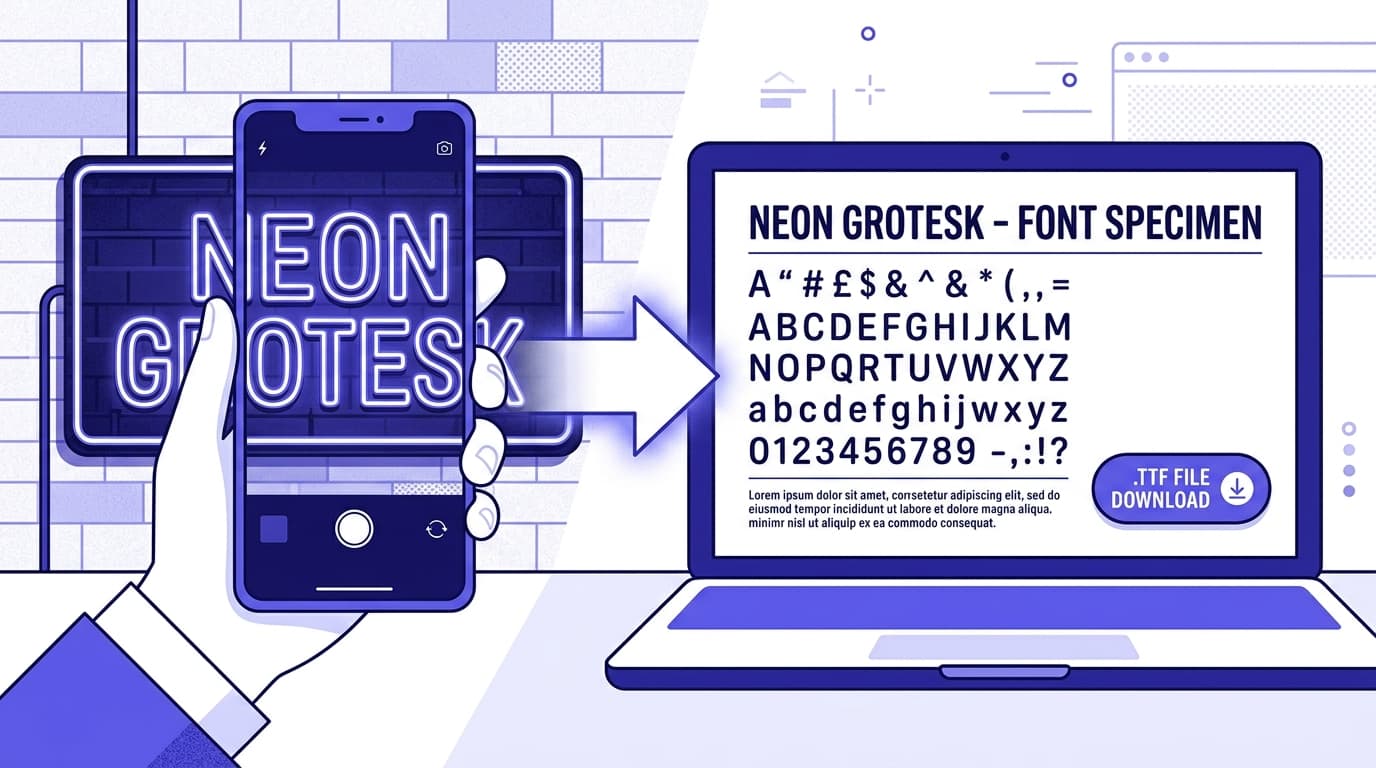
Snapafont is designed for this use case: it turns an image of lettering or handwriting into a downloadable .TTF font file. That makes it a practical option when no browser font finder can help because the source is image-based, custom, or unavailable as a conventional webfont. Before using any reference, make sure you own the lettering or have permission to turn it into a font.
Generation is not a substitute for respecting type licenses or copying another brand’s identity. It is a way to preserve and reuse lettering you are entitled to use. For example, a small business could digitize its founder’s handwritten note style for thank-you cards, while a designer could turn approved hand-drawn characters into a font for a campaign.
Turn Distinctive Lettering Into Editable Type
The fastest way to find font on website pages is usually Inspect Element or a trusted extension. Start there, confirm the rendered family, and record the weight, size, spacing, and line height before trying to recreate the look. If the site uses a commercial or custom typeface, follow the licensing trail or select a legitimate alternative.
When the lettering you want exists only in an image, a handwritten sample, or original artwork, you do not have to settle for reusing a static graphic. Try Snapafont at snapafont.com to convert eligible lettering into a downloadable .TTF font that you can install and use in your design tools. It is a straightforward next step for making your own visual style editable, reusable, and consistent.
Ready to turn your image into a font?
Upload any image and get a real, downloadable .TTF font file in seconds.
Try Snapafont Free →